For TS to push scheduled updates to Power BI reports in your organization, the TS Autopilot needs access to your organization's Power BI API. This guide sets up that access. You only need it if you want to schedule Power BI reports.
Before you start
Steps 1 to 3 are one-time setups. Steps 4 and 5 are done for each report you want to schedule. Each step says who can do it:
- Step 1: an IT admin
- Step 2: a Power BI admin
- Step 3: a Power BI Pro user
- Step 4: the report owner, who must have a Power BI Pro licence
- Step 5: any TS user with permissions for Activities
At least one user from your organization must have logged in to TS. The "Treasury Systems SaaS" app service principal then exists in your organization.
The Autopilot authenticates as that service principal, "Treasury Systems SaaS".
Steps
Step 1: Create a security group for the Autopilot
One-time setup, done by an IT admin. This creates a security group in Microsoft Entra ID that contains the service principal.
- Sign in to your Azure portal.
- Go to Microsoft Entra ID (formerly Azure Active Directory).
- Go to Groups.
Select New group, then:
- Set the group type to Security and the group name to "TS Autopilot".
- Add yourself as owner.
- Add the application service principal "Treasury Systems SaaS" as a member of the group.

Step 2: Give the group access to the Power BI API
One-time setup, done by a Power BI admin. This gives the "TS Autopilot" security group access to the Power BI API in your organization.
- Sign in to Power BI.
- Select the settings icon (the cogwheel).
- Go to Admin portal.
- Go to Tenant settings.
- Scroll down to the Developer settings section.
- Enable Allow service principals to use Power BI APIs.
- Apply it to Specific security groups.
- Add the "TS Autopilot" security group you created in step 1.
Select Apply.

Step 3: Create a workspace you share with the Autopilot
One-time setup, done by a Power BI Pro user. This creates a workspace that both you and the TS Autopilot can access.
Any report the Autopilot updates must be in a workspace that both the user and the Autopilot can access. Reports you created earlier in My Workspace can't be reached by the Autopilot.
- Sign in to Power BI.
- Select Workspaces.
- Select Create a workspace.
Name it. This guide uses "TS-Shared".

- Select Apply.
In your workspace, select Manage access.

Add the "Treasury Systems SaaS" app as a member of the workspace.

Step 4: Export a report from TS to Power BI
Done for each report by the report owner, who must have a Power BI Pro licence. This exports a report from TS to Power BI, so the Autopilot can later update it on a schedule.
- In TS, create the report you want to export to Power BI.
- Set Report viewer to Power BI.
- Run the report.
Choose your shared workspace ("TS-Shared"), and set the report to Create new.
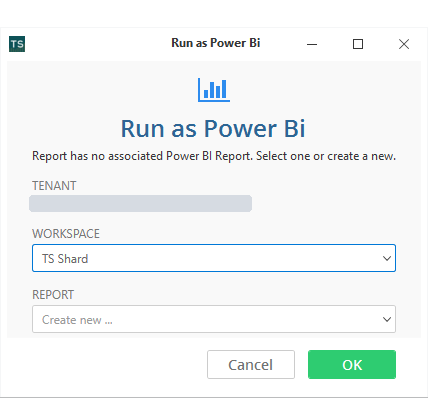
- Select Run.
- Design the report in Power BI and save it.
- Run the report in TS again and select the report you just created. The report in TS is now linked to the report in Power BI.
Don't skip this step: share the report with the Autopilot. Select Sharing on the Reports toolbar and give the Autopilot user the Read and Update permissions.

Step 5: Set up the activity that updates the report
Done for each report by any TS user with permissions for Activities. This creates an activity setup that can be scheduled to update a Power BI report.
- Sign in to TS.
- Go to the Activities view.
- Create a new activity setup and choose the type Update Power BI Report.
- Give it a name and a description.
- Select the Power BI report it should update.
- Select Save.
- Test the activity by selecting Run.
- Schedule the Autopilot with the Scheduler in the Activities view.
Result
If the test run in step 5 succeeds, "ActivitySuccess" is logged in the activity history. Check that the Power BI report has been updated with the new data.