Power BI reports let you add visuals, diagrams and graphs to your TS reports. Use them for reports you would otherwise build in Excel and PowerPoint, or for a dashboard that brings in information from other sources.
Before you start
You need a report in TS to show in Power BI. Create a new one in the first step, or use an existing report you want to convert.
Steps
Set up the report in TS
In Reports, select Add Report. To convert an existing report instead, open it and go to step 2.

For more on creating reports, see Reports (create new and update a report).
Select the columns (database fields) and other settings you want to use in the Power BI report.

On the Overview tab, set Report viewer to Power BI, then select Save.
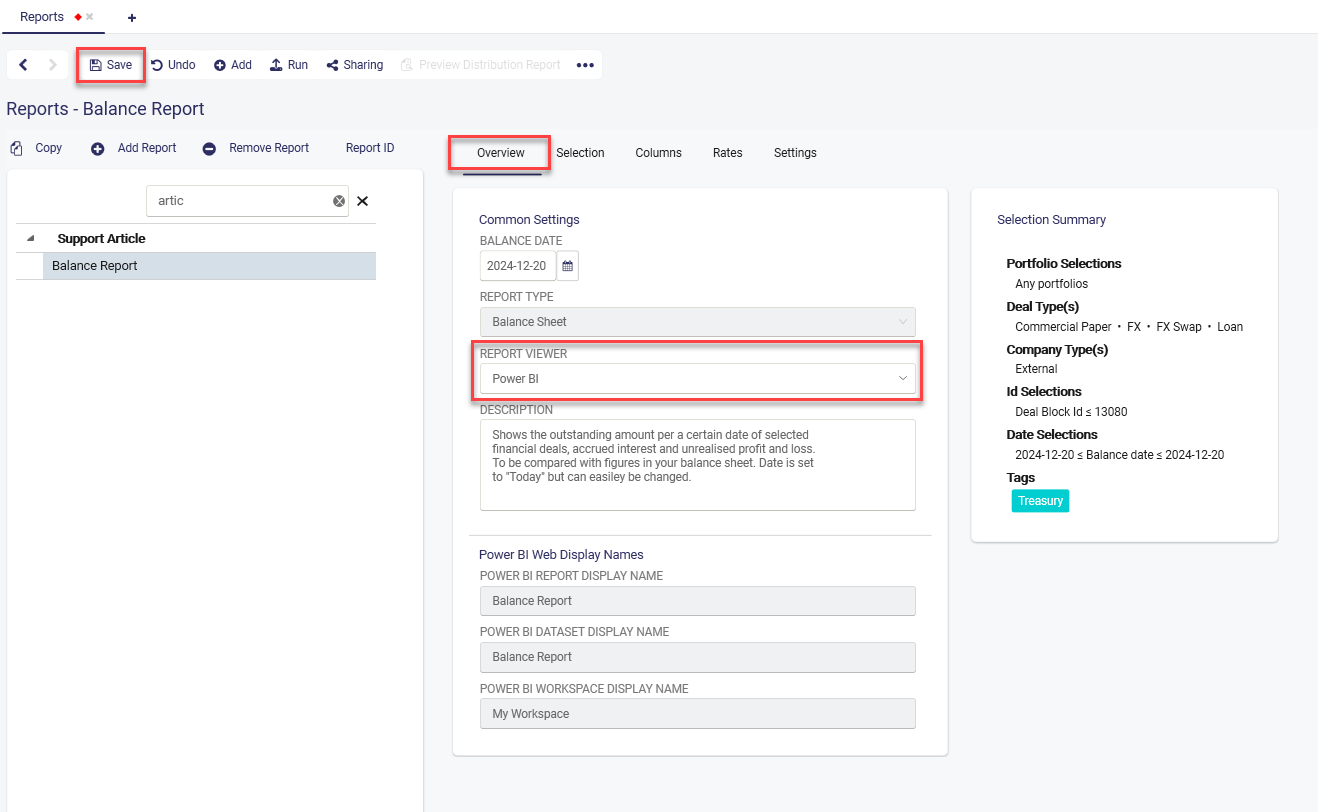
Create the report in Power BI
Select Run. In the window that opens, choose the Workspace to store the report in (the default is My Workspace), set Report to Create new ... and select OK.
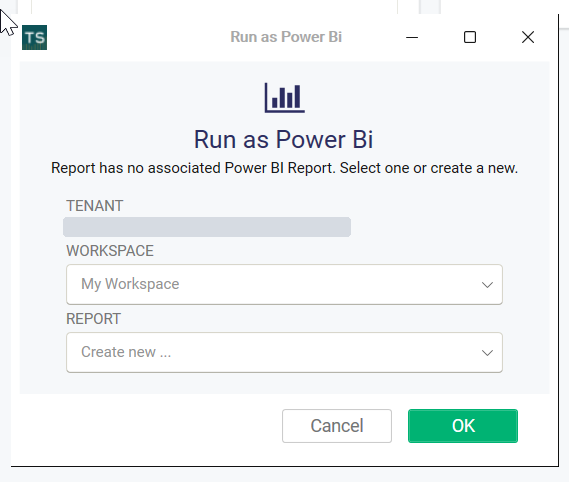
To start from an existing Power BI report layout instead, see How to copy a Power BI report to a shared workspace.
TS uploads the data set to Power BI Web and opens the report layout view. Design the report: choose fields from the data list (Balance Report on the right in the picture below) and add visualizations.
Save the report in Power BI and give it a name that says what it shows (Balance Report Power BI Web at the top left in the picture).

Result
The first time you run the report from TS, it uses the report layout you made in Power BI Web, and the output is shown in TS.

On the report's Settings tab, Power BI report now holds the ID of the report in Power BI. The same ID is part of the report's address in Power BI Web, shown in the picture for step 6.

The Power BI report's name is also shown on the Overview tab, under Power BI report display name.
