TS exports a report's semantic model (dataset) to the Power BI web app automatically. The web app can't do everything; for example, you can't add measures (your own calculations) there. When you need to, open the semantic model in Power BI Desktop, make your changes, and publish the report back to the web. The report can still be viewed embedded in TS, the same way as before.
Before you start
- You need Power BI Desktop. Download it if you don't have it.
- In Power BI Desktop, Power BI semantic models must be enabled under Options and settings.
Steps
Create the report in TS and Power BI
Create a report in TS, with Report viewer set to Power BI.

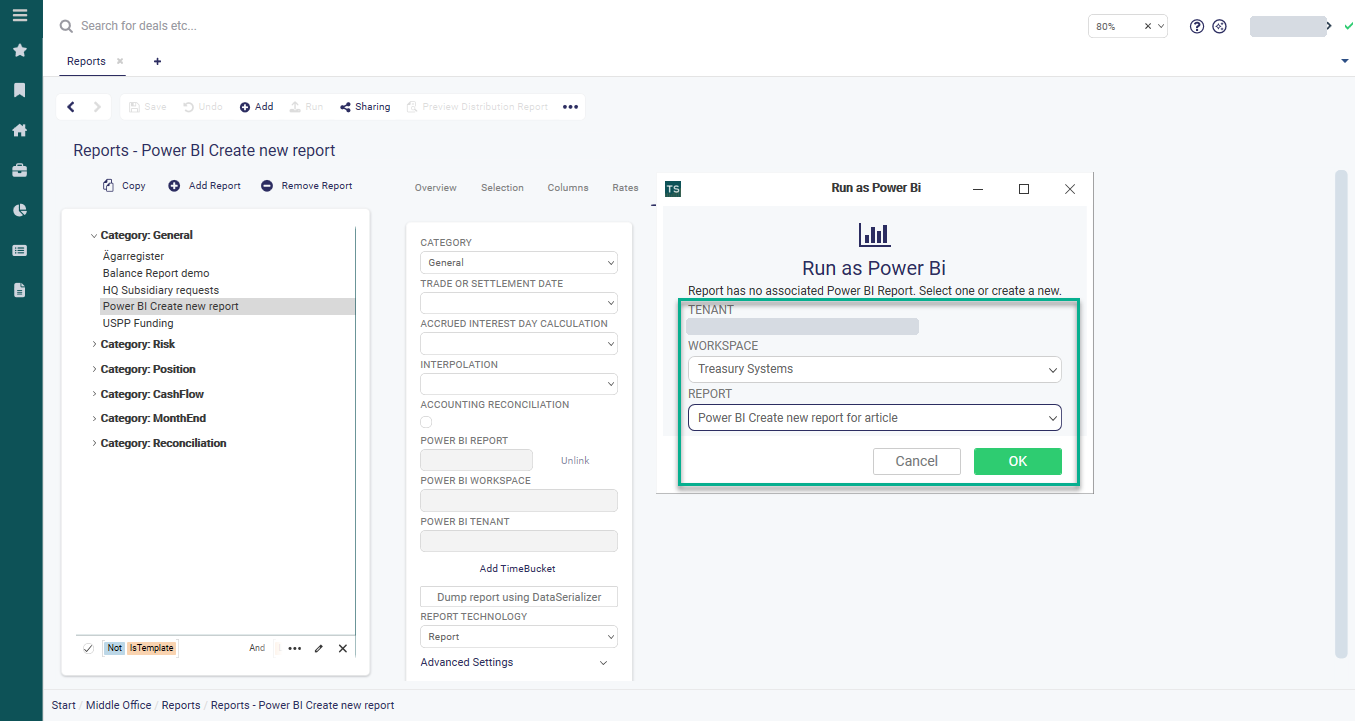
Select Run. Choose your online Power BI workspace, set Report to Create new ... and select OK.

In the Power BI web app, select the Save icon at the top right.

Give the report a name. We suggest the same name the report has in TS.

Build the report in Power BI Desktop
Open Power BI Desktop, go to File, select Get data and choose Power BI semantic models.

Choose your report, and build it in Power BI Desktop.

When you're happy with the report, go to File and select Save.

To update the report in TS, go to File and select Publish in Power BI Desktop.


Link the report in TS
Run the report in TS, and choose the workspace and the report you published. This links the online report to TS. Select OK.

Result
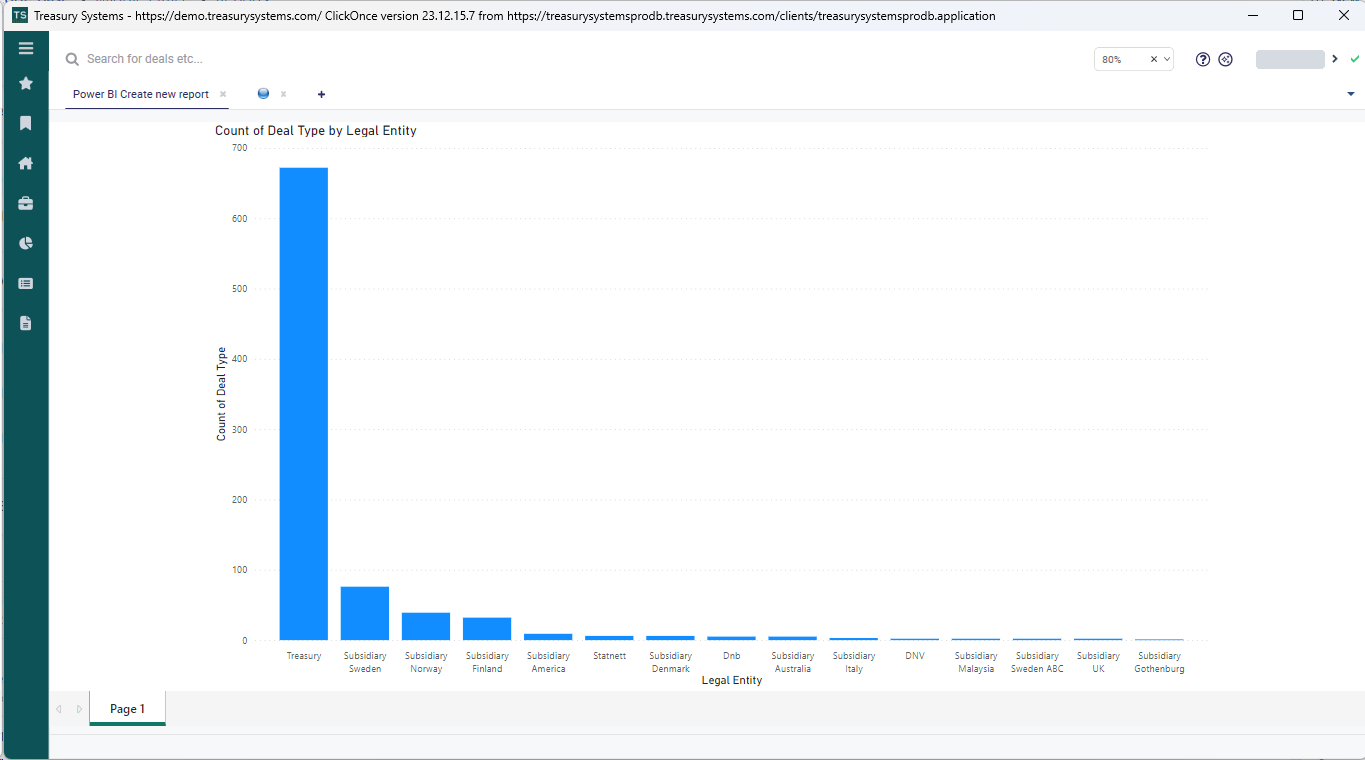
The report is shown in TS.
Change the linked workspace or report
Open the report in TS. On the Settings tab, select Unlink, then Save.
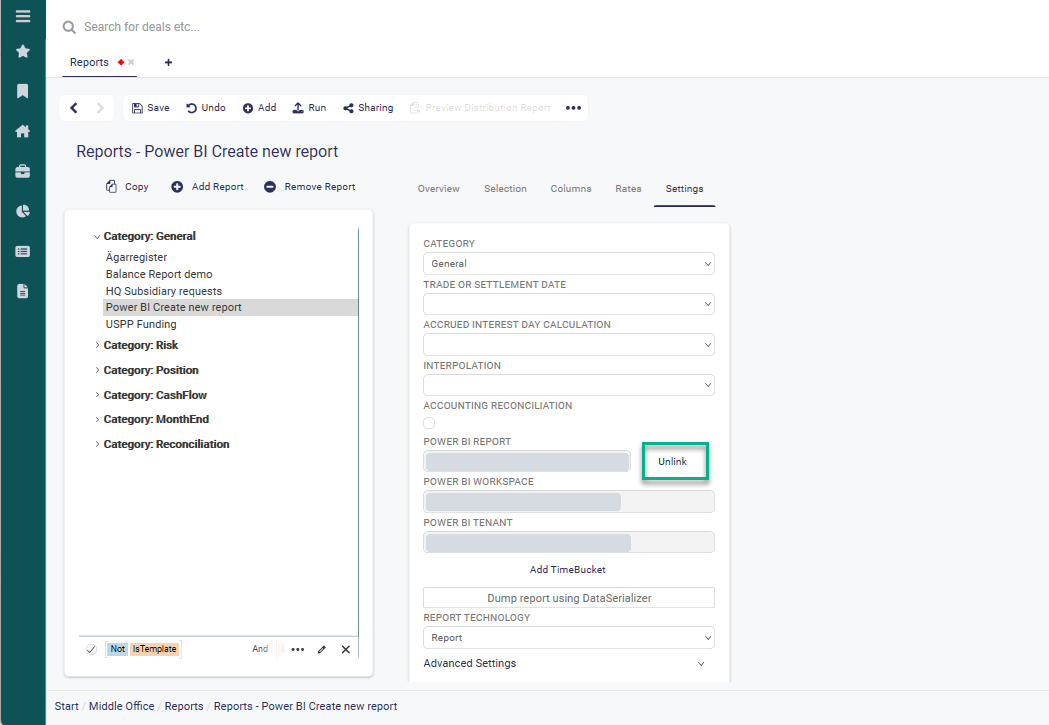
Run the report again, and choose the workspace and report to connect.