Fetch report data and market data from TS straight into Excel or Power BI. You sign in with your organisation's Microsoft Entra ID account, so you don't need a token.
Before you start
- Your company uses Microsoft Entra ID. This way of connecting needs an Entra ID account.
- You have the permission Public API Access in TS. A user who can edit users gives it to you in Roles & Permissions; see TS API for Reports and Market Data.
- You know which endpoint to call. The same article lists the endpoints and their parameters.
Watch how it works
The video shows the whole flow: fetching report data into Excel, then into Power BI.
Video: fetch report data from the TS API into Excel and Power BI (MP4, 4 MB)
Connect Excel
-
In Excel, on the Data tab, select From Web.

-
Enter the endpoint's URL, with your company name in place of CUSTOMERNAME, and select OK. For example, interest rates for 12 March 2024:
https://ts.treasurysystems.com/tenants/CUSTOMERNAME/api/marketdata/ir/v3?date=20240312or a system report, run in real time:
https://ts.treasurysystems.com/tenants/CUSTOMERNAME/api/reportdata/realtime/v3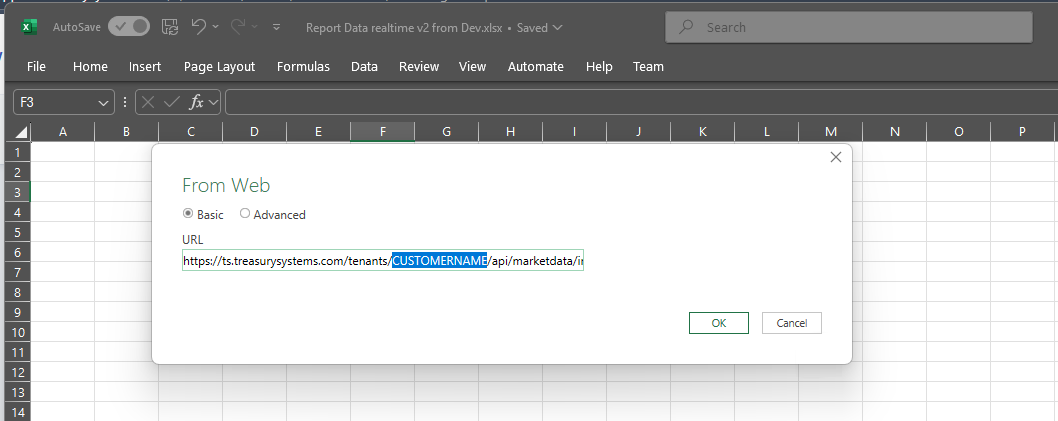
-
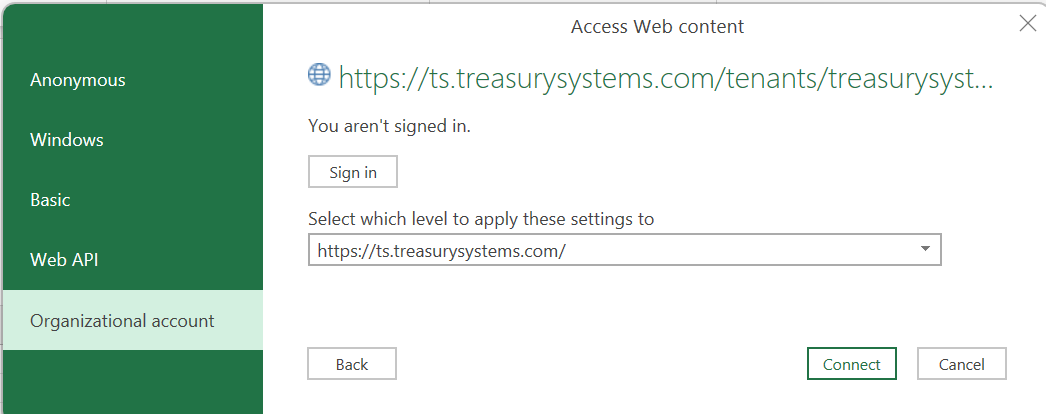
When Excel asks how to sign in, select Organizational account, then Sign in. Sign in with your Entra ID account, then select Connect.
-
In Power Query Editor, unpack the data into a table: convert it to a table, then expand its columns until you see the rows you need. The Applied steps in the screenshot show one way, and the video above shows it step by step.
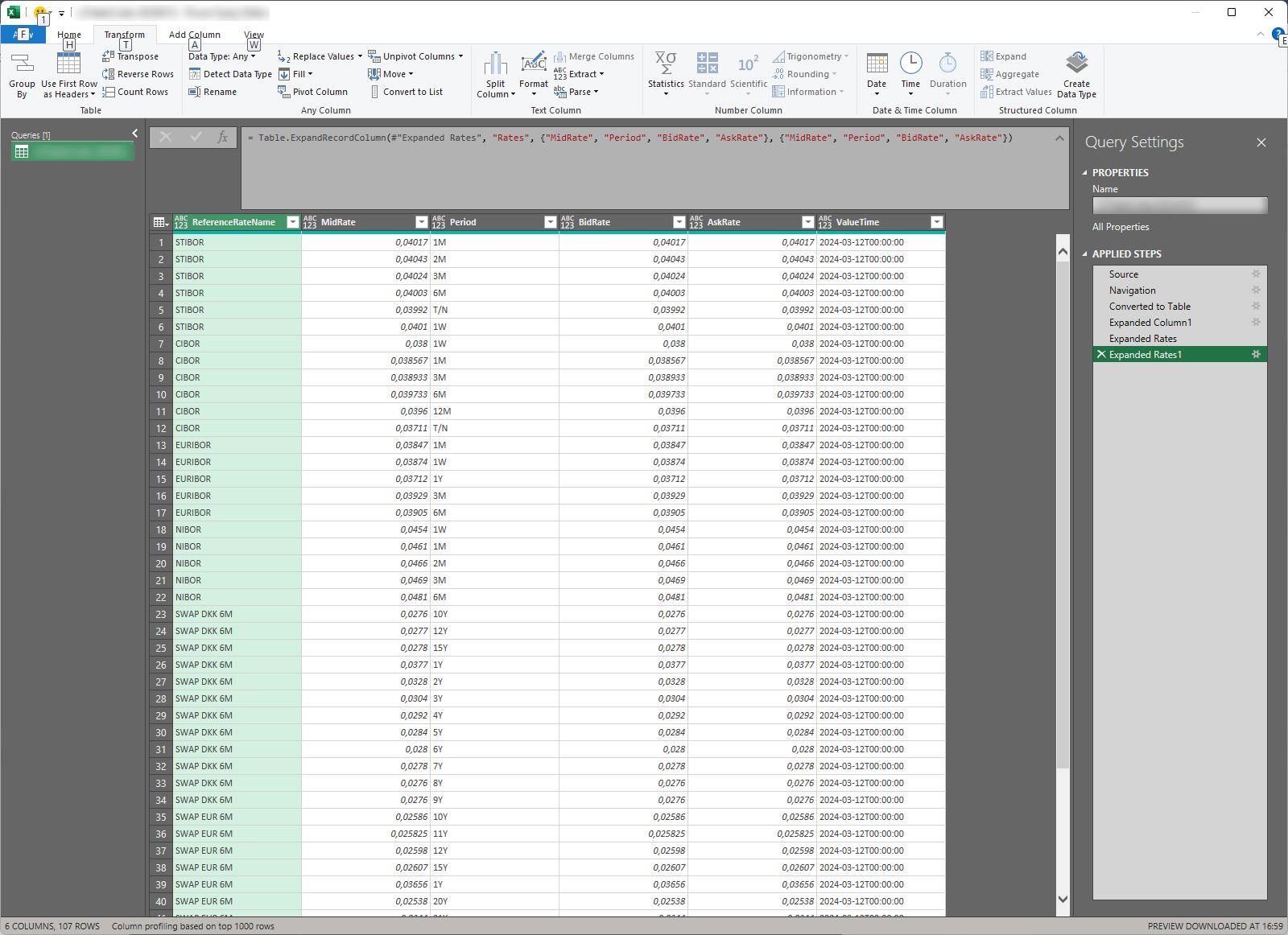
- Select Close & Load. The data loads into a sheet. To fetch the latest data later, select Refresh All on the Data tab.
Connect Power BI
- In Power BI Desktop, select Get data › Web.
- Enter the endpoint's URL, as for Excel, and select OK.
- Select Organizational account, then Sign in. Sign in with your Entra ID account, then select Connect.
- In Power Query Editor, unpack the data into a table, as for Excel.
- Select Close & Apply.